
Page Structure Basics
Browsers, screen readers, search engines and translation tools read a page's structure and meaning from its HTML elements. Choose the right elements and the groundwork for accessibility and SEO comes with no extra effort.
Each rule states its strength (MUST / MUST NOT / SHOULD) at the end of its summary, and rules are ordered from strongest to weakest. "Check" IDs refer to items in the Page Quality Checklist; select one to open its reference figure. Code examples are collapsed. The text is written so that you can decide without opening them.
Baseline Template
Build every page from a shared template. It already contains the <head> settings, landmarks, and skip link described in the sections below.
Template code
<!DOCTYPE html>
<html lang="ja">
  <head>
    <meta charset="utf-8" />
    <meta name="viewport" content="width=device-width, initial-scale=1" />
    <title>Page Title | Organization / Site Name</title>
    <meta name="description" content="A concise, human-readable summary of 120–160 characters describing this page." />
    <link rel="canonical" href="https://example.com/news/2026/spring-update" />
    <link rel="icon" href="/favicon.svg" type="image/svg+xml" />
    <link rel="stylesheet" href="/assets/css/style.css" />
  </head>
  <body>
    <!-- Skip link for keyboard and screen reader accessibility (first focusable element) -->
    <a class="u-skip-link" href="#main">Skip to main content</a>

    <header>
      <nav aria-label="Global Navigation">…</nav>
    </header>

    <main id="main" tabindex="-1">
      <h1>Unique Page Heading</h1>
      <p>Primary page content…</p>
    </main>

    <footer>…</footer>

    <script type="module" src="/assets/js/main.js"></script>
  </body>
</html>
What goes in <head>
<!DOCTYPE html>on the first line MUSTPQ-R01- The HTML5 DOCTYPE puts the browser in standards mode, so the page renders the same everywhere.
- Check:
DOC-01DOC-01DOCTYPE✕ NGQuirks mode breaks layout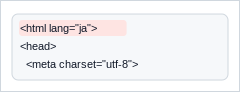 No DOCTYPE: quirks mode✓ OK<!DOCTYPE html> on line 1
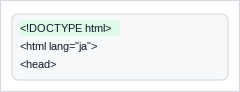 Rendered in standards mode
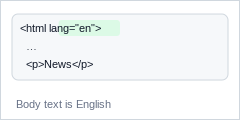
- Set the content language in
langon<html>MUSTPQ-R02 - Use a code such as
jaorenso screen readers pronounce the text in the right language. - Check:
DOC-02DOC-02Page language✕ NGlang does not match the text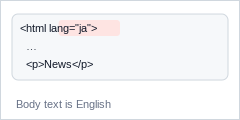 ✓ OKlang matches the text
<meta charset="utf-8">within the first 1024 bytes MUSTPQ-R03- Declared early, it lets the browser read the text in the right encoding from the start, without garbling.
- Check:
DOC-03DOC-03Character encoding✕ NGDeclared too late; may garble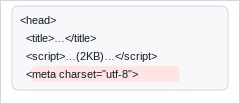 After the first 1024 bytes✓ OKDeclared within the first 1024 bytes
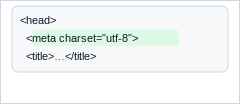 First thing in head
- Set the viewport to
width=device-width, initial-scale=1MUSTPQ-R04 - The page then fits the screen width on phones.
- Check:
DOC-04DOC-04Viewport✕ NGZoom is disabled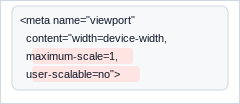 Pinch zoom is blocked✓ OKSets width only; zoom stays available
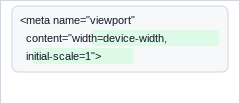
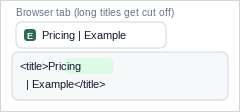
- A unique
<title>per page, in the order "Page Name | Site Name" MUSTPQ-R05 - Tabs and search results can then be told apart from their first few words.
- Check:
DOC-05DOC-05Title order✕ NGSite name first; hard to tell apart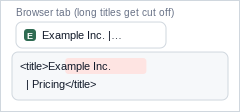 ✓ OKPage name first
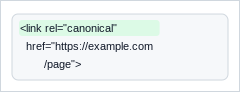
<link rel="canonical">on pages reachable at more than one URL MUSTPQ-R06- When parameters or other variations lead to the same content, this tells search engines the canonical URL and concentrates ranking on it.
- Check:
DOC-07DOC-07Canonical URL✕ NGSeen as duplicate pages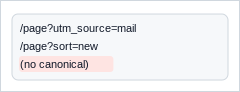 ✓ OKStates the canonical URL
- Do not block zoom in the viewport MUST NOTPQ-R07
- Leave out
user-scalable=noandmaximum-scale=1so zoom stays available; people who enlarge text can read at the size that suits them. - Check:
- Summarize the page in
<meta name="description">SHOULDPQ-R08 - Write about 120–160 characters specific to the page. Search results use it as the description.
- Check:
DOC-06DOC-06Meta description✕ NGDoes not summarize this page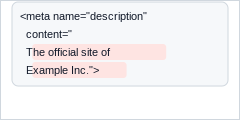 Not about this page; too short✓ OKSummarizes this page
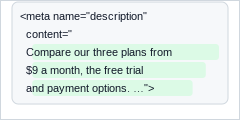 Summarizes this page, ~140 chars
- Set the Open Graph tags SHOULDPQ-R09
- Social networks use them for share previews. See How Pages Look When Shared for details.
- Check:
DOC-08DOC-08Open Graph tags✕ NGJust a bare URL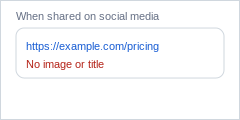 ✓ OKA card with image and title
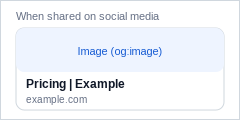
Landmarks
Landmarks let screen reader users jump straight to the main regions of a page. Use these elements for each region.
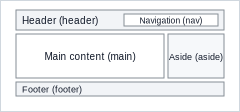
| Region | Element | Notes |
|---|---|---|
| Site header | <header> outside <main> and similar elements | Implicit role banner |
| Main content | <main id="main" tabindex="-1"> | Target of the skip link |
| Navigation | <nav aria-label="…"> | Tell multiple ones apart with aria-label |
| Complementary | <aside> | Related to the main content but stands on its own |
| Site footer | <footer> outside <main> and similar elements | Implicit role contentinfo |
| Search | <search> | Fall back to role="search" only where <search> is unsupported |
- Exactly one
<main>per page MUSTPQ-R10 - Do not nest it either. "Skip to content" then has a single destination.
- Check:
STR-01STR-01One main element✕ NGTwo main elements, one nested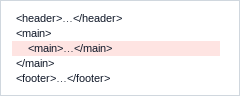 ✓ OKExactly one main
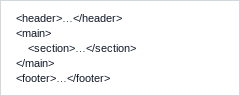
- Site-wide
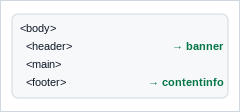
<header>and<footer>outside<main>,<article>,<aside>,<nav>and<section>MUSTPQ-R11 - Outside them, they become the
banner/contentinfolandmarks, so screen reader users can jump straight to the top and bottom of the site. They need not be direct children of<body>: a plain wrapper such as<div id="app">is fine. - Check:
STR-02STR-02Landmarks✕ NGInside article: not landmarks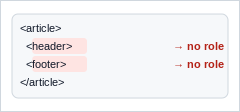 ✓ OKBecome banner and contentinfo
 Directly under body
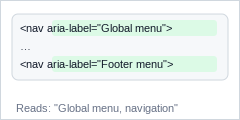
- Tell multiple
<nav>elements apart witharia-labelMUSTPQ-R12 - With names that say what each is for, such as "Global menu" and "Footer menu", users can tell the "navigation" regions apart when a screen reader lists them.
- Check:
STR-03STR-03Distinguish multiple navs✕ NGCannot tell the navs apart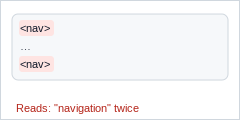 ✓ OKaria-label tells them apart
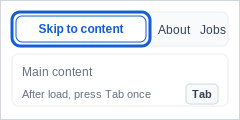
- A skip link at the top of the page MUSTPQ-R13
- Put a link to
<main>(<a href="#main">) where focus lands first. It may be hidden until focused, but must be visible once it has focus. Keyboard users then do not have to Tab through the navigation on every page. - Check:
STR-04STR-04Skip link✕ NGFirst Tab lands in the navigation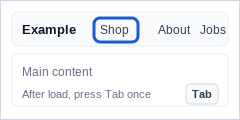 ✓ OKFirst Tab reveals the skip link
tabindex="-1"on the<main>the skip link targets MUSTPQ-R14- With it, the skip link moves focus into the main content, and the next Tab continues from there.
- Check:
STR-10STR-10Focus after skip link✕ NGScrolls, but focus stays behind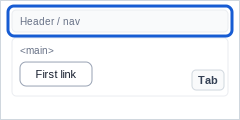 Next Tab goes back to nav✓ OKFocus moves into main
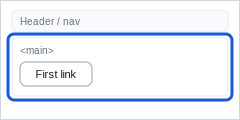 Next Tab goes into main
- Do not repeat an element's own role MUST NOTPQ-R15
- Elements such as
<main>and<nav>convey their role on their own. Relying on them keeps the markup short and in line with the HTML specification (no<main role="main">).
Headings
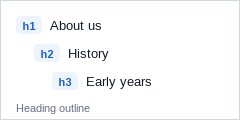
- Exactly one
<h1>per page MUSTPQ-R16 - Make it the heading for the page's subject, so screen readers and search engines can identify a single subject.
- Note: multiple
<h1>elements do not violate the HTML specification or WCAG. Limiting it to one is this guideline's own standard for fixing a single subject per page. - Check:
STR-05STR-05Heading structure✕ NGTwo h1 elements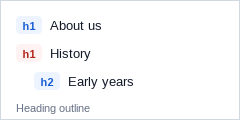 ✓ OKOnly one h1
- Do not skip heading levels MUST NOTPQ-R17
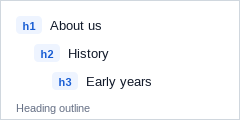
- Go down one level at a time, such as
<h3>after<h2>. When levels follow the structure, people navigating by headings can follow the document's hierarchy. - Check:
STR-06STR-06Heading structure✕ NGA heading level is skipped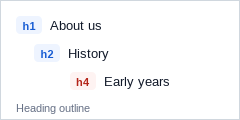 ✓ OKLevels in order
- Do not choose headings for their looks MUST NOTPQ-R18
- Use heading tags for headings and
<p>and similar for body text, and set size and weight in CSS. Keeping structure and looks apart lets you adjust each on its own. - Give each
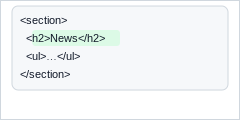
<section>a heading SHOULDPQ-R19 - Include a matching heading (
<h2>–<h6>) so tables of contents and navigation can name the group. A group without a heading is a<div>. - Check:
STR-08STR-08Section headings✕ NGUnclear what the section is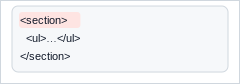 section has no heading✓ OKEach section has a heading
Choosing Sectioning Elements
| Content | Element | Examples and criteria |
|---|---|---|
| Self-contained content that could be distributed on its own | <article> | News stories, blog posts, user comments, product cards |
| A chapter or section with a heading | <section> | A group that would be one entry in the document outline |
| A group for layout or decoration | <div> | A wrapper with no meaning, used only for CSS |
| A list of parallel items | <ul>, <ol>, <dl> | Bullet points, steps, term–description pairs |
When <div> is right
<div> is the best fit for wrappers used for layout or styling. Keeping <section> for groups with headings makes the document structure clear.
Language
- Set the page language and any other languages in the text MUSTPQ-R20
- Set the page language with
langon<html>, and addlangto words or passages in another language (e.g.<span lang="ja">日本語</span>). Screen readers then pronounce each part correctly. - Check:
- On multilingual sites, link the language versions to each other MUSTPQ-R21
- Put
<link rel="alternate" hreflang="…">in<head>so every language version points to the others. Search engines can then offer users the version in their language.
Validation
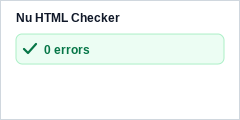
- Zero errors in the W3C Nu HTML Checker MUSTPQ-R22
- Validate with the W3C Nu HTML Checker. Valid markup is interpreted the same way by every browser and assistive technology.
- Check:
DOC-10DOC-10HTML validation✕ NGSyntax errors remain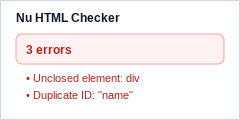 ✓ OKZero syntax errors
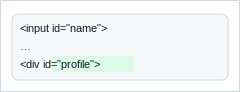
- No duplicate
idvalues in a page MUSTPQ-R23 - Unique values keep
<label>associations and in-page links working reliably. - Check:
STR-07STR-07Unique ids✕ NGDuplicate id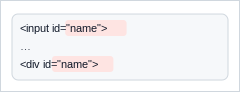 ✓ OKAll ids unique
- Quote attribute values with double quotes MUSTPQ-R24
- Keeps the markup consistent and safe when a value contains spaces.
- Write boolean attributes by name only SHOULDPQ-R25
- Write
required, notrequired="required". The meaning stays the same and the markup is shorter.